
De Kamiel

Offered by: ZirconfleX
http://www.zirconflex.be

Using the Nautilus or Nemo file manager, you can double-click on a file to open it with its default application. If the default application is not what you like or you are not sure what the default application is, or want to modify it the default application, then you can right-click on the file. The first item on the fall down menu is the default application, and find a list of mime-type associations under the menu item "Open With". The last item on the list [Open Width] menu is [Other Application…].
Clicking on [Other Application…] brings up a dialogue box that lets one add another application than the default that can be used to open or run the file.
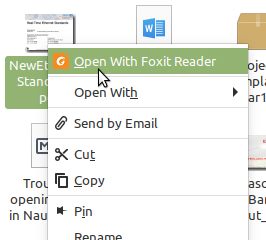 Figure 1
 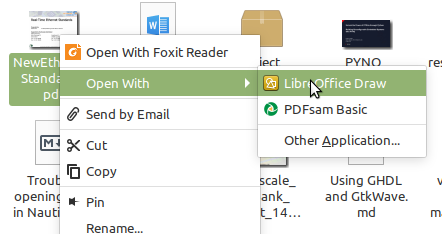 Figure 2
 Figure 3
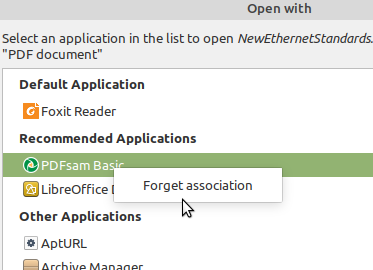 Figure 4
/usr/share/applications as
defaults.list file.
This entry is a sim-link of the
defaults.list file in
/etc/gnome/defaults.list.
~/.config/mimeapps.list
/etc/gnome/defaults.list (Linux-Mint stores here the original defaults.list file. the version in /usr/share/applications is a sim-link of this file).
mimeapps.list file is present here too in my installation)
default.list mime-type association files contain files and their association to a certain application. This is the application used by default to open or run a file, it is the application that runs when at double clicking a file or its the first item in right-click menu as figure 1 shows.
I guess that these files are modified when an application is installed. The installer of the application enters here what files the application can open, run, launch and work with.
mimeapps.list files are files created by the user.
mimeapps.list files overrule the application entries for that type of file in the
defaults.list file.
mimeapps.list files are showed when clicking [Open With] in the right-click menu as figure 2 shows.
mimeapps.list file holds the applications removed from the right-click menu. The associations in the file or other
mimeapps.list files are NOT removed.
mimeapps.list file in
~/.local/share/applications. This is also the place where user installed application generate or copy their
.desktop files.
.desktop file list with applications separated by
;
                [Default Applications]
                application/pdf=FoxitReader.desktop
                x-scheme-handler/mailto=userapp-Thunderbird-VEN8K0.desktop
                text/csv=libreoffice-calc.desktop;
                text/english=code.desktop;atom.desktop;xed.desktop;
                text/google-video-pointer=xplayer.desktop;vlc.desktop;
                [Added Associations]
                model/x.stl-binary=atom.desktop;
                application/octet-stream=atom.desktop;
default.list mime-type association files do NOT have divisions as [Default Applications], [Added Associations] and [Removed Associations]. It's just a list of associations between applications and file types.
.desktop files are the files used to launch an application from a Gnome GUI.
These files are by default (unless an application is installed as user) and when a tool is installed as root(sudo) stored in:
/usr/share/applications or
/home/marc/.local/share/applications
mimetype <filename> or in this case
mimetype OpenWith_1.png
.desktop file of this tool is stored (Of course, the tool must be installed)
locate gimp.desktop
gimp.desktop is stored.
                        mine@desktop:~$ locate gimp.desktop /usr/share/app-install/desktop/gimp:gimp.desktop /usr/share/applications/gimp.desktop
                        mine@desto:~$
.desktopfile in
/usr/share/applications or in
~/.local/share/appliactions.
That is the
.desktop file to use for the file association.
mimeapps.listfile in
~/.config and add what we just found out under [Default Applications] or
[Added Associations]. Save the file and try it out in Nautilus or Nemo.
Open with a text editor the mimeapps.listfile in ~/.config or in ~/.local/share/applicationsand simply delete the line of the tool no longer wanted in the [Open With] menu.
Possibly a saver way to remove tools from the [Open With] list is to add them under the [Removed Associations] entries in the mimeapps.list file.
When an application is listed in the [Open With] list is means it has an entry in a defalts.list file or in a mimeapps.list file on the system. When dropping a line under the [Removed Associations] entries everything else is overruled and the application is gone in the [Open With] list. It is now very easy to put the tool back in the menu by removing it from the [Removed Associations] entries.
Example:
image/svg+xml)
~/.config/mimeapps.list and browse to the [Removed Associations] section
image/svg+xml is already registered with an applications
.desktop entry add "libreoffice-writer" to the entry as showed below:
 [Removed Associations]
image/svg+xml=pix.desktop;latexdraw.desktop;libreoffice-writer.desktop; image/svg+xml type in the [Removed Associations] section, simply add the registration and possibly also the title of the section.
 [Removed Associations]
image/svg+xml=libreoffice-writer.desktop; mimeapps.list file and try out if the "libreoffice-writer" is removed from the [Open With] right-click menu.
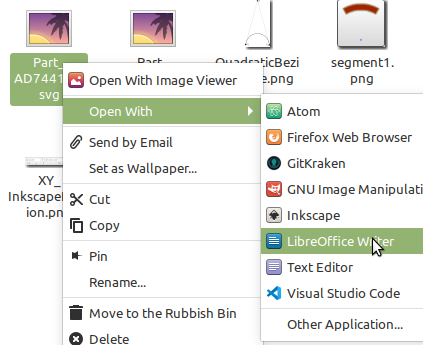 Figure 6
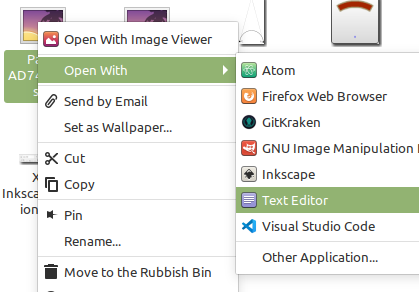 Figure 7
defaults.list in
/usr/share/appliactions!
.desktop files to
default.list and/ormimeapps.list files, this command can be used:
update-desktop-database